
Pop-ups are small windows that appear on your screen while browsing a website. They often show login pages, payment forms, download buttons, or extra information. Sometimes they are helpful. Other times, they can be annoying or even unsafe.
On an iPhone, pop-ups are blocked by default. This is done to protect you from unwanted ads, spam, and harmful websites. Most users never need to change this setting. But in some cases, you may need to unblock pop-ups to complete an important task.
For example, many bank websites open login pages in pop-ups. Payment gateways may not load unless pop-ups are allowed. School portals, government forms, ticket booking sites, and file downloads can also depend on pop-ups to work properly.
The good news is that unblocking pop ups is safe when you do it carefully and only for trusted websites. In this guide, you will learn how to enable pop ups in Safari and Chrome, fix common problems, and stay safe while browsing.
Why Are Pop Ups Blocked on iPhone?
Apple designs the iPhone with strong built in security features to protect users. One of these protections is automatic pop up blocking. This feature is part of the system powered by iOS.
Pop ups are often used for spam ads, fake prize alerts, and phishing scams. Some malicious websites use pop ups to trick people into sharing personal information or downloading harmful files. To reduce these risks, pop ups are turned off by default.
This protection works well in most situations. However, it can sometimes block legitimate pop-ups too. For example, a bank login window, online payment page, or official form may fail to open if pop-ups are disabled.
That is why knowing how and when to unblock pop-ups can help you complete important tasks without putting your device at risk.
How to Unblock Pop-Ups in Safari on iPhone: Step-by-Step
What Is Safari?
Safari is the default web browser that comes pre-installed on every iPhone. Most iPhone users browse the internet using Safari unless they download another browser. It is designed to work smoothly with iOS and includes built-in privacy and security features, including a pop-up blocker.
If a website is not opening a login window or payment page, Safari’s pop-up blocker may be the reason.
Steps to Enable Pop-Ups in Safari
Follow these simple steps to unblock pop-ups in Safari:
- Open the Settings app on your iPhone
- Scroll down and tap Safari
- Look for the option called Block Pop-ups
- Toggle it OFF
When the switch is turned off, pop-ups will be allowed in Safari.
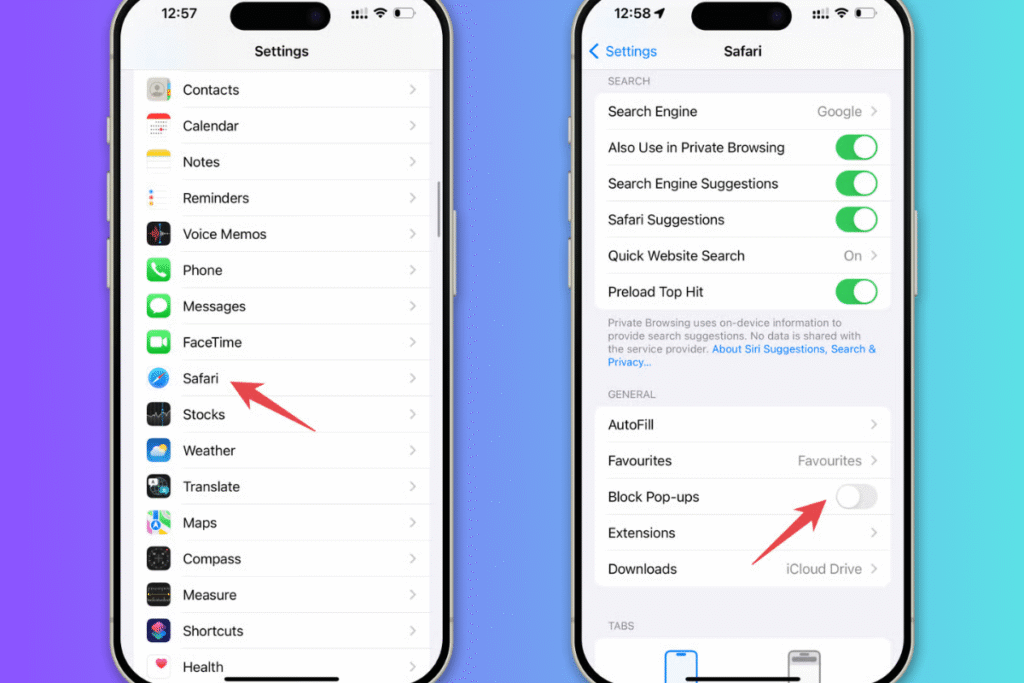
Now go back to the website and try again. The pop-up window should open properly.
How to Allow Pop-Ups for Specific Websites
At the moment, Safari on iPhone does not allow you to enable pop-ups for only one specific website. The setting applies to all websites.
If you only need pop-ups for a short time, the best option is to turn the blocker off temporarily. Once you finish your task, such as logging into your bank account or completing a payment, go back to Settings and turn Block Pop-ups on again.
This keeps your browsing safer in the long run.
Quick Troubleshooting Tips
If pop-ups still do not work, try these quick fixes:
• Close Safari completely and open it again
• Clear browsing data by going to Settings, Safari, then tap Clear History and Website Data
• Make sure your iOS version is updated to the latest version
These simple steps solve most pop-up issues on iPhone.
How to Unblock Pop-Ups in Chrome on iPhone
Using Google Chrome on iPhone
Many users prefer using Google Chrome instead of Safari. Chrome is popular because it syncs bookmarks, passwords, and browsing history across devices. If you use Chrome on your computer, using it on your iPhone can feel more familiar.
Just like Safari, Chrome also blocks pop-ups by default to protect users from unwanted ads and harmful websites. If a login page, payment window, or download is not opening, you may need to adjust Chrome’s pop-up settings.
Steps to Enable Pop-Ups in Chrome
Follow these steps to allow pop-ups in Chrome:
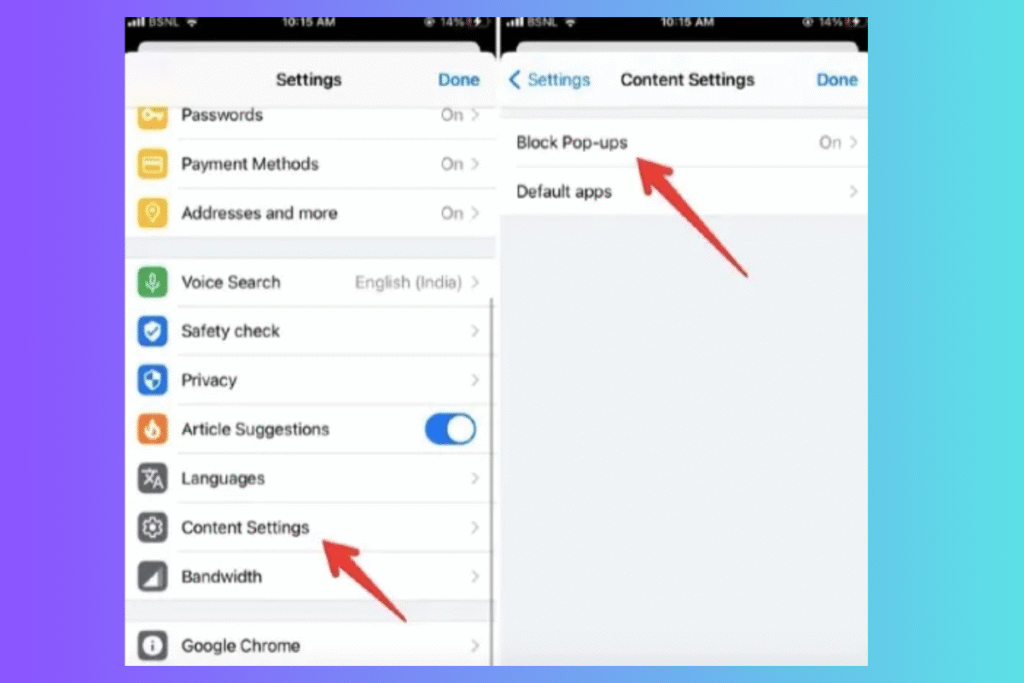
- Open the Chrome app on your iPhone
- Tap the three dots in the bottom right corner
- Select Settings
- Tap Content Settings
- Choose Block Pop ups
- Toggle the switch off
Once disabled, go back to the website and refresh the page. The pop up should now open properly.
Even though Chrome on iPhone runs on the same web engine used by iOS, it still has its own internal settings that control pop ups.
If Pop Ups Still Do Not Work
If you have turned off pop up blocking in Chrome but the issue continues, try these fixes:
• Check Safari settings and make sure pop ups are not blocked there
• Disable any content blockers or ad-blocking apps installed on your phone
• Update Chrome to the latest version from the App Store
These steps usually fix most pop up problems in Chrome on iPhone.
Once your browser settings are fixed, you can enjoy streaming without issues. Learn how to connect an iPhone to Smart TV to take your entertainment to the next level.
How to Unblock Pop Ups in Other Browsers
Not everyone uses Safari or Chrome. Some users prefer other browsers for privacy features or syncing options. If you are using a different browser on your iPhone, the steps are usually similar.
Mozilla Firefox on iPhone
Mozilla Firefox is known for its strong privacy features and user-friendly design. Many people choose Firefox for better tracking protection.
To manage pop-ups in Firefox:
- Open the Firefox app
- Tap the menu icon
- Go to Settings
- Look for privacy or browsing settings
- Find the pop up blocker option and adjust it
The exact wording may vary slightly depending on the version, but the option is usually inside the privacy section.
Microsoft Edge on iPhone
Microsoft Edge is another popular browser, especially for users who work on Windows computers. It syncs passwords and bookmarks across devices.
To control pop ups in Edge:
- Open the Edge app
- Tap the menu icon
- Go to Settings
- Select Privacy and Security
- Find the pop up blocking option and turn it off
Third Party Browser Considerations
Most third party browsers have their own in-app pop-up controls. Always check the browser’s settings first.
If pop ups are still blocked, also review your iPhone Screen Time restrictions, as they can override browser settings.
Check Screen Time Restrictions
Sometimes pop ups are blocked not because of your browser, but because of Screen Time settings on your iPhone.
To check this:
- Open Settings
- Tap Screen Time
- Select Content and Privacy Restrictions
If this feature is turned on, it may limit certain web content or block specific website functions, including pop ups. Tap on Content Restrictions and review the web content settings. If websites are restricted, pop ups may not work properly.
If needed, you can temporarily turn off Content and Privacy Restrictions to see if that solves the problem. After finishing your task, you can enable it again for safety.
This feature is especially useful for parents who manage their child’s device. It helps control what type of content can be accessed online. Just remember that these restrictions can sometimes interfere with normal website functions.
Common Reasons Pop Ups Still Will Not Open
If pop ups are still not working, one of these issues could be the cause:
Ad blockers installed
Some ad blocking apps prevent pop ups automatically. Try disabling the ad blocker temporarily and reload the website.
VPN interference
Certain VPN services block scripts or website elements. Turn off your VPN for a moment and test again.
Website malfunction
The website itself may be having technical problems. Refresh the page or try again later.
Outdated iOS
An older version of iOS can cause compatibility issues. Go to Settings, General, then Software Update to check for updates.
Poor internet connection
Slow or unstable internet can prevent pop ups from loading. Switch to a stronger WiFi network or mobile data.
JavaScript disabled
Some websites need JavaScript to open pop ups. In Settings, Safari, make sure JavaScript is enabled.
Checking these issues usually solves most pop up problems on the iPhone.
Sometimes poor sound quality is not a software issue. Before troubleshooting further, check our guide on how to clean a speaker on an iPhone for a quick and safe cleaning method.
Is It Safe to Allow Pop Ups on an iPhone?
Allowing pop ups on your iPhone can be safe if you do it carefully. There are both benefits and risks.
Pros:
Pop ups are sometimes necessary. Many banking websites open secure login windows in pop ups. Online payment gateways, government portals, school systems, and ticket booking websites may also depend on them. Without enabling pop ups, these services may not work properly.
Cons:
Some pop ups are used for spam, fake prize messages, or phishing scams. Clicking unknown pop ups can lead to harmful websites or attempts to steal personal information.
It is generally safe to allow pop ups when you are using trusted websites, official portals, or recognized banking services. Avoid clicking on suspicious ads or unknown links.
For better security, turn the pop up blocker back on after you finish your task. This keeps your device protected while browsing other websites.
Quick Comparison Table
Here is a simple overview of where to manage pop up settings in different browsers:
| Browser | Where to Change Settings | Recommended Action |
| Safari | Settings App | Toggle Block Pop ups OFF |
| Google Chrome | Chrome App Settings | Disable Block Pop ups |
| Mozilla Firefox | App Settings | Allow Pop ups |
| Microsoft Edge | App Settings | Adjust Privacy Settings |
This table makes it easy to quickly find the correct setting based on the browser you are using.
Frequently Asked Questions
Why can’t I see pop ups even after turning them on?
If pop ups are enabled but still not appearing, check a few things. Make sure Screen Time restrictions are not limiting websites. Disable any ad blockers or VPN services temporarily. Also confirm that JavaScript is enabled in Safari settings. Restarting your iPhone can also fix small technical glitches.
How do I allow pop ups for just one website on iPhone?
Safari on iPhone does not currently allow pop up permissions for individual websites. The setting applies to all sites. The safest option is to turn off the pop up blocker temporarily, complete your task, and then turn it back on.
Does turning off the pop up blocker make my iPhone unsafe?
It can increase risk if you browse unknown or suspicious websites. However, it is generally safe when you are using trusted websites such as banking portals, official government sites, or secure payment gateways. Just avoid clicking random ads.
How do I clear the Safari cache on my iPhone?
Go to Settings, tap Safari, then select Clear History and Website Data. This removes stored browsing data and can fix loading issues.
Why are banking pop ups not working on iPhone?
Banking websites often use secure pop up windows. If they are not opening, check that pop ups are enabled, JavaScript is on, and your iOS version is updated.