
Screen mirroring and casting have become very popular as more people enjoy watching content from their phones on a bigger screen. Whether you want to stream movies, show photos to your family, make a presentation, or play games, connecting an iPhone to a smart TV makes everything easier. The good news is that most modern TVs support this feature, and the setup is simple for everyday users.
In this guide, you will learn the easiest ways to connect your iPhone to different smart TV brands, including Samsung, LG, Sony, Android TVs, and Apple TV. The steps are beginner-friendly and help you enjoy a smooth viewing experience on your TV.
If you are setting up a smart home, you might also want to check our guide on Best Smart Home Devices 2025 in Dubai for the latest smart gadgets and accessories.
Methods to Connect an iPhone to a Smart TV
There are a few easy ways to connect your iPhone to a smart TV. You can use AirPlay, a cable, or a screen mirroring app. Below are the most common methods and how each one works.
Use AirPlay (Wireless Method)
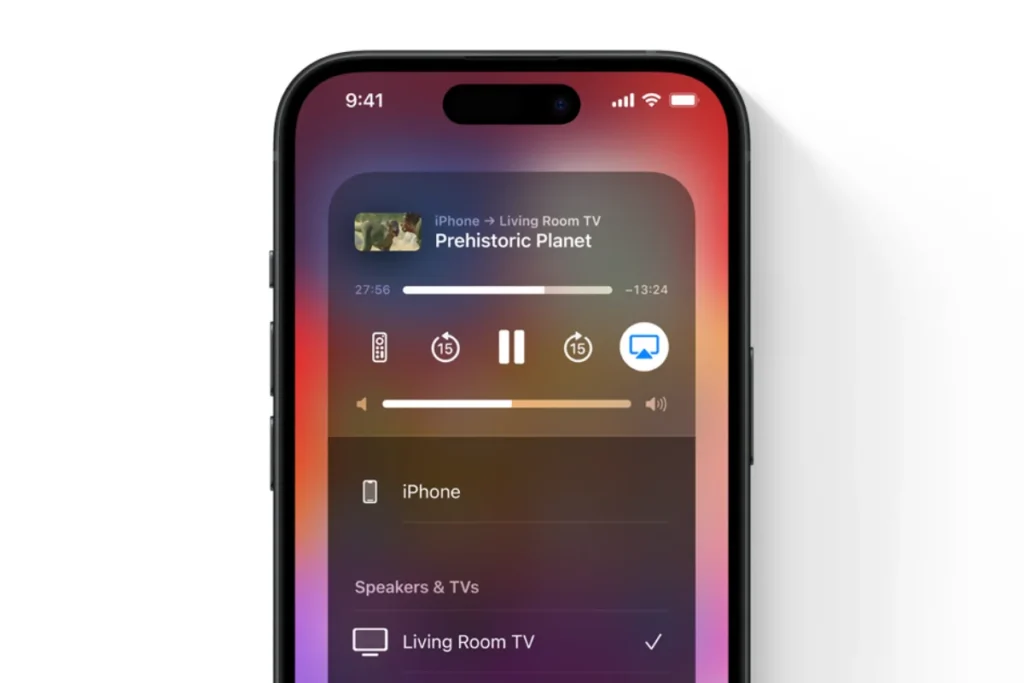
AirPlay is a built-in Apple feature that lets you mirror your iPhone screen to your TV wirelessly. It works smoothly and does not require any extra devices. Many modern TV brands support AirPlay, including Samsung, LG, Sony, TCL, Roku, Apple TV, and Hisense.
Requirements:
- Your iPhone and TV must be on the same WiFi network
- Your iPhone should be updated to the latest iOS
- AirPlay must be enabled in the TV settings
How to connect using AirPlay:
- Turn on your TV and enable AirPlay from the settings menu.
- Open Control Center on your iPhone.
- Tap Screen Mirroring.
- Select your TV from the list.
- Enter the code shown on your TV if asked.
- Once connected, your iPhone screen will appear on the TV.
Use an HDMI Cable and Adapter (Wired Method)
A cable connection is useful when you want a stable and lag-free experience. This method works even when WiFi is slow or unavailable.
What you need:
- Lightning to HDMI adapter
- HDMI cable
- Smart TV with an HDMI port
How to connect:
- Plug the Lightning adapter into your iPhone.
- Connect the HDMI cable to the adapter and the TV.
- Switch the TV to the correct HDMI input.
- Your iPhone screen will appear instantly with no delay.
Benefits:
- No WiFi needed
- Very stable picture and sound
- Good for long videos or presentations
Use Screen Mirroring Apps
If your TV does not support AirPlay, you can use third-party apps. Popular options include AirScreen, ApowerMirror, and brand-specific apps like Samsung SmartThings or LG ThinQ.
When these apps are helpful:
- Your TV is not AirPlay compatible
- You want extra features like recording or extended controls
Pros:
- Works with many older TVs
- Easy to install
- Offers extra tools depending on the app
Cons:
- May show ads
- Can have a slight delay
- Depends on your WiFi strength
How to Connect an iPhone to Different Smart TVs
Different TV brands have their own way of connecting with an iPhone. Below are the easiest methods for each type of smart TV.
Samsung Smart TV
Samsung TVs support AirPlay, which makes the process quick and simple.
How to enable AirPlay on Samsung TV:
- Go to Settings.
- Select General.
- Open Apple AirPlay Settings.
- Turn AirPlay ON.
How to mirror your iPhone:
- Ensure your iPhone and TV are on the same WiFi network.
- Open Control Center on your iPhone.
- Tap Screen Mirroring.
- Select your Samsung TV.
- Enter the code shown on the TV if needed.
Your iPhone screen will appear on the TV within seconds.
LG Smart TV
LG TVs with webOS also support AirPlay.
How to enable AirPlay on LG TV:
- Press the Home button on the LG remote.
- Open Home Dashboard.
- Select the AirPlay tile.
- Turn AirPlay ON.
How to mirror your iPhone:
- Make sure both devices are on the same WiFi network.
- Open Control Center on your iPhone.
- Tap Screen Mirroring.
- Choose your LG TV.
Your iPhone will connect automatically.
Sony Smart TV
Most Sony Bravia TVs with Android or Google TV support Apple AirPlay.
How to enable AirPlay:
- Open Settings on your Sony TV.
- Go to Device Preferences or System Settings.
- Enable AirPlay.
How to mirror your iPhone:
- Open Control Center on the iPhone.
- Tap Screen Mirroring.
- Select your Sony TV.
The screen will show on your TV right away.
Android TVs and Google TVs
These TVs may not always support AirPlay directly, but they can connect using apps or Chromecast built in.
Method 1: Use the AirScreen app:
- Install the AirScreen app from the TV app store.
- Open the app and complete the setup.
- Open Control Center on your iPhone.
- Tap Screen Mirroring and select the TV.
Method 2: Use Chromecast built-in:
- Open YouTube or any Chromecast-supported app on your iPhone.
- Tap the Cast icon.
- Select your TV.
- The video will start playing on your TV.
This method is great for streaming.
Apple TV
Apple TV offers the strongest and smoothest iPhone connection.
How to connect:
- Ensure both devices are on the same WiFi.
- Open Control Center on your iPhone.
- Tap Screen Mirroring.
- Select Apple TV.
Best features:
- Very stable connection
- Supports HD and 4K playback
- Great for movies and gaming
- Works perfectly with all Apple devices
Troubleshooting Common Problems
Sometimes the connection between your iPhone and smart TV may not work smoothly. Here are quick fixes for the most common issues.
iPhone not detecting the TV
- Make sure both devices are on the same WiFi network.
- Restart your TV and iPhone.
- Turn AirPlay off and on again in your TV settings.
AirPlay not working
- Check if AirPlay is enabled on the TV.
- Update your iPhone and TV software.
- Disable any VPN on your iPhone since it can block AirPlay.
No sound on the TV
- Turn up the TV volume.
- Check if the iPhone is connected to a Bluetooth speaker.
- Go to AirPlay options and choose the TV as the audio output.
If you are facing low sound or unclear audio while streaming, the issue might be your phone’s speaker. Before connecting to your TV, read our simple guide on how to clean a speaker on an iPhone to improve sound quality.
Lag or delay during screen mirroring
- Move closer to the WiFi router.
- Use a 5 GHz WiFi network instead of 2.4 GHz.
- Reduce other devices using the same network.
App not connecting
- Clear the app cache or restart the app on your TV.
- Reinstall the mirroring app if needed.
- Make sure your TV and iPhone are allowed to communicate on the network.
Planning to buy a Smart TV, HDMI cable, or streaming device? Check our guide on where to buy affordable electronics in Dubai to find the best deals and trusted stores.
FAQs
Why is my iPhone not connecting to my TV?
Your iPhone may not connect if both devices are not on the same WiFi network, AirPlay is turned off, or the TV firmware is outdated. Restarting your iPhone and TV often fixes temporary glitches. Also, make sure the TV input source is set correctly.
Do all TVs support AirPlay?
Not all TVs support AirPlay. Most newer models from Samsung, LG, Sony, TCL, Roku, Hisense, and all Apple TV devices support it. Older smart TVs may require a third-party app or an external device like Apple TV to enable AirPlay.
Can I connect without WiFi?
Yes, you can connect without WiFi by using a Lightning to HDMI cable. This wired setup mirrors your iPhone screen directly on the TV. Some AirScreen or casting apps can also work with a direct hotspot connection, but performance may vary.
What is the best method for gaming?
A wired HDMI connection is the best choice for gaming because it offers almost zero lag and stable performance. Wireless methods like AirPlay may show a slight delay, especially in fast-paced games.
Is screen mirroring safe to use?
Yes, screen mirroring is safe as long as you are connected to trusted devices. AirPlay uses secure encryption to protect your data. Avoid mirroring on public or unknown networks for better security.